


Canary Release
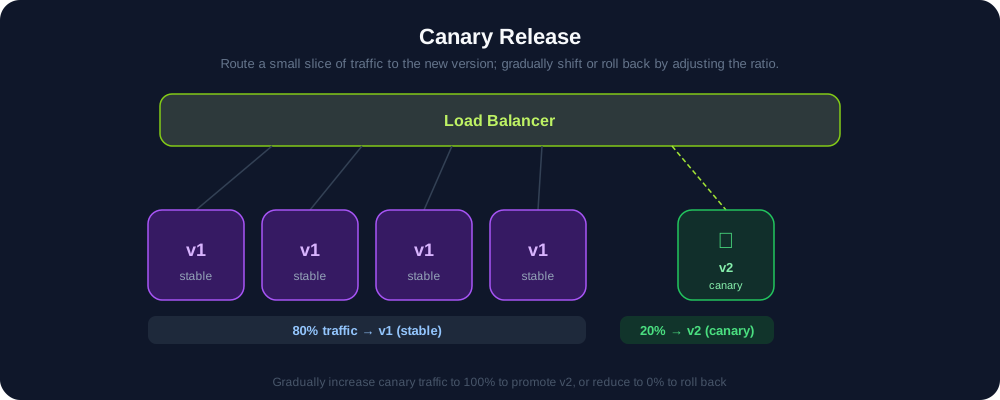
On the back of Istio, Kube AI Hub provides users with necessary control to deploy canary services. In a canary release, you introduce a new version of a service and test it by sending a small percentage of traffic to it. At the same time, the old version is responsible for handling the rest of the traffic. If everything goes well, you can gradually increase the traffic sent to the new version, while simultaneously phasing out the old version. In the case of any occurring issues, Kube AI Hub allows you to roll back to the previous version as you change the traffic percentage.
This method serves as an efficient way to test performance and reliability of a service. It can help detect potential problems in the actual environment while not affecting the overall system stability.
Prerequisites
- You need to enable Kube AI Hub Service Mesh.
- You need to enable Kube AI Hub Logging so that you can use the Tracing feature.
- You need to create a workspace, a project and a user (
project-regular). The user must be invited to the project with the role ofoperator. For more information, see Create Workspaces, Projects, Users and Roles. - You need to enable Application Governance and have an available app so that you can implement the canary release for it. The sample app used in this tutorial is Bookinfo. For more information, see Deploy and Access Bookinfo.
Step 1: Create a Canary Release Job
-
Log in to Kube AI Hub as
project-regularand navigate to Grayscale Release. Under Release Modes, click Create on the right of Canary Release. -
Set a name for it and click Next.
-
On the Service Settings tab, select your app from the drop-down list and the Service for which you want to implement the canary release. If you also use the sample app Bookinfo, select reviews and click Next.
-
On the New Version Settings tab, add another version of it (e.g
kubesphere/examples-bookinfo-reviews-v2:1.16.2; changev1tov2) and click Next. -
You send traffic to these two versions (
v1andv2) either by a specific percentage or by the request content such asHttp Header,CookieandURI. Select Specify Traffic Distribution and move the slider to the middle to change the percentage of traffic sent to these two versions respectively (for example, set 50% for either one). When you finish, click Create.
Step 2: Verify the Canary Release
Now that you have two available app versions, access the app to verify the canary release.
-
Visit the Bookinfo website and refresh your browser repeatedly. You can see that the Book Reviews section switching between v1 and v2 at a rate of 50%.
-
The created canary release job is displayed under the tab Release Jobs. Click it to view details.
-
You can see half of the traffic goes to each of them.
-
The new Deployment is created as well.
-
You can directly get the virtual Service to identify the weight by executing the following command:
kubectl -n demo-project get virtualservice -o yamlNote
- When you execute the command above, replace
demo-projectwith your own project (namely, namespace) name. - If you want to execute the command from the web kubectl on the Kube AI Hub console, you need to use the user
admin.
- When you execute the command above, replace
-
Expected output:
...
spec:
  hosts:
  - reviews
  http:
  - route:
    - destination:
        host: reviews
        port:
          number: 9080
        subset: v1
      weight: 50
    - destination:
        host: reviews
        port:
          number: 9080
        subset: v2
      weight: 50
      ...
Step 3: View Network Topology
-
Execute the following command on the machine where Kube AI Hub runs to bring in real traffic to simulate the access to Bookinfo every 0.5 seconds.
watch -n 0.5 "curl http://productpage.demo-project.192.168.0.2.nip.io:32277/productpage?u=normal"Note
Make sure you replace the hostname and port number in the above command with your own. -
In Traffic Monitoring, you can see communications, dependency, health and performance among different microservices.
-
Click a component (for example, reviews) and you can see the information of traffic monitoring on the right, displaying real-time data of Traffic, Success rate, and Duration.
Step 4: View Tracing Details
Kube AI Hub provides the distributed tracing feature based on Jaeger, which is used to monitor and troubleshoot microservices-based distributed applications.
-
On the Tracing tab, you can see all phases and internal calls of requests, as well as the period in each phase.
-
Click any item, and you can even drill down to see request details and where this request is being processed (which machine or container).
Step 5: Take Over All Traffic
If everything runs smoothly, you can bring all the traffic to the new version.
-
In Release Jobs, click the canary release job.
-
In the displayed dialog box, click
 on the right of reviews v2 and select Take Over. It means 100% of the traffic will be sent to the new version (v2).
Note
If anything goes wrong with the new version, you can roll back to the previous version v1 anytime. -
Access Bookinfo again and refresh the browser several times. You can find that it only shows the result of reviews v2 (i.e. ratings with black stars).
 Previous
