


Cluster Visibility and Authorization
In Kube AI Hub, you can allocate a cluster to multiple workspaces through authorization so that workspace resources can all run on the cluster. At the same time, a workspace can also be associated with multiple clusters. Workspace users with necessary permissions can create multi-cluster projects using clusters allocated to the workspace.
This guide demonstrates how to set cluster visibility.
Prerequisites
- You need to enable the multi-cluster feature.
- You need to have a workspace and a user that has the permission to create workspaces, such as
ws-manager. For more information, see Create Workspaces, Projects, Users and Roles.
Open Cluster Visibility from the Overview Page
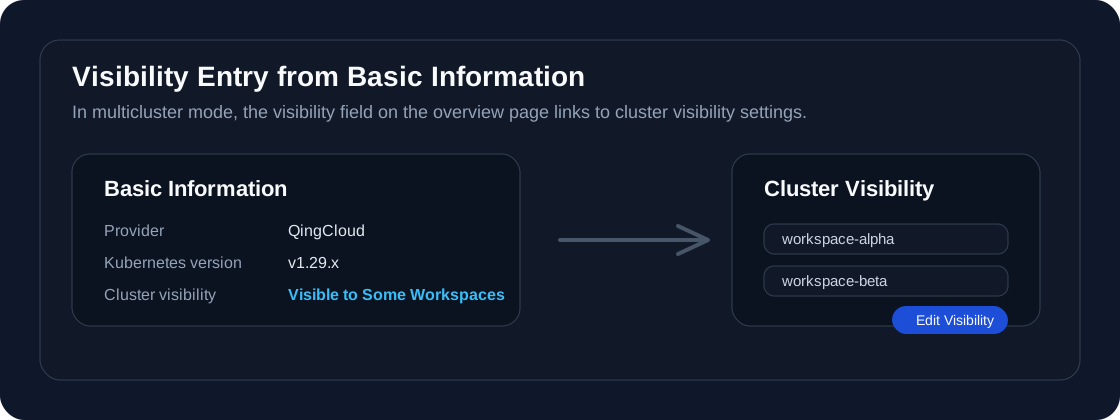
If you are already on the cluster overview page, you can open this page directly by clicking the Cluster visibility field in the Basic Information card. This entry is available only when multi-cluster is enabled.
Set Cluster Visibility
Select available clusters when you create a workspace
-
Log in to Kube AI Hub with a user that has the permission to create a workspace, such as
ws-manager. -
Click Platform in the upper-left corner and select Access Control. In Workspaces from the navigation bar, click Create.
-
Provide the basic information for the workspace and click Next.
-
On the Cluster Settings page, you can see a list of available clusters. Select the clusters that you want to allocate to the workspace and click Create.
-
After the workspace is created, workspace members with necessary permissions can create resources that run on the associated cluster.
Warning
Try not to create resources on the host cluster to avoid excessive loads, which can lead to a decrease in the stability across clusters.
Set cluster visibility after a workspace is created
After a workspace is created, you can allocate additional clusters to the workspace through authorization or unbind a cluster from the workspace. Follow the steps below to adjust the visibility of a cluster.
-
Log in to Kube AI Hub with a user that has the permission to manage clusters, such as
admin. -
Click Platform in the upper-left corner and select Cluster Management. Select a cluster from the list to view cluster information. You can also open the cluster Overview page first and then jump here through the Cluster visibility field in Basic Information.
-
In Cluster Settings from the navigation bar, select Cluster Visibility.
-
You can see the list of authorized workspaces, which means the current cluster is available to resources in all these workspaces.
-
Click Edit Visibility to set the cluster visibility. You can select new workspaces that will be able to use the cluster or unbind it from a workspace.
Make a cluster public
You can check Set as Public Cluster so that platform users can access the cluster, in which they are able to create and schedule resources.
 Previous
