


Cluster Overview
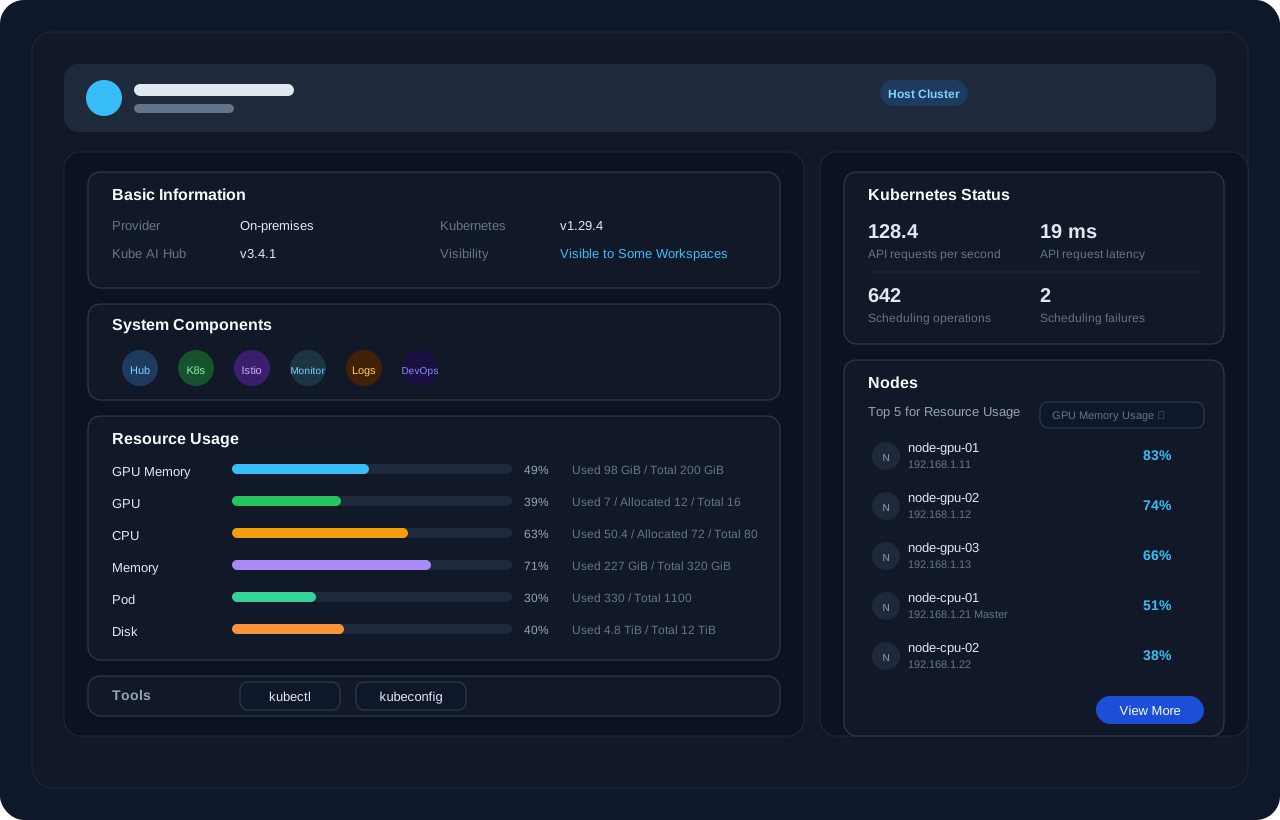
The cluster overview page brings together the most important cluster information, system components, resource usage, shortcuts, and node rankings in a single dashboard. Compared with older monitoring-focused layouts, the current page is organized as an overview dashboard that helps cluster administrators quickly understand cluster status and jump to related management pages.
Prerequisites
You need a user granted a role that includes the authorization of Cluster Management. For example, you can log in to the console as admin directly, or create a new role with the authorization and assign it to a user.
Open the Cluster Overview
-
Click Platform in the upper-left corner and select Cluster Management.
-
If you have enabled the multi-cluster feature and imported member clusters, select the target cluster first.
-
In the navigation pane, choose Overview to open the dashboard for the current cluster.
Info
platform-admin role.Page Layout
Cluster header
The top area shows the current cluster name, description, provider icon, and cluster role labels. A host cluster is marked so that it can be identified quickly in a multi-cluster environment.
Basic Information
When multi-cluster is enabled, the overview page displays a Basic Information card with the following fields:
- Provider
- Kubernetes version
- Kube AI Hub version
- Cluster visibility
You can click Cluster visibility to jump directly to Cluster Visibility and Authorization.
System Components
The System Components card shows entry points for important components enabled in the cluster. Kube AI Hub and Kubernetes are always shown. Depending on cluster modules, you may also see Istio, Monitoring, Logging, and DevOps.
Click any component icon to open the related component page and inspect its status and resources.
Resource Usage
The Resource Usage card summarizes key cluster resources, including:
- GPU memory
- GPU
- CPU
- Memory
- Pod
- Disk
Each item shows the current usage ratio together with values such as Used, Allocated, and Total, making it easier to spot resource pressure at a glance.
Tools
For users granted the platform-admin role, the overview page displays a Tools card with the following entries:
kubectl: opens a Web Kubectl terminal window for the current clusterkubeconfig: opens the kubeconfig page for the current cluster
For details about these entries, see Web Kubectl and Retrieve Kubeconfig.
Kubernetes Status
The Kubernetes Status card on the right side shows key control-plane metrics, including:
- API requests per second
- API request latency
- Scheduling operations
- Scheduling failures
These metrics help you quickly identify abnormal behavior in the API server or scheduler.
Nodes Top 5
The Nodes area currently focuses on the Top 5 for Resource Usage ranking. You can sort nodes by different indicators to quickly identify high-load nodes. Supported sort options include:
- GPU memory usage
- GPU usage
- GPU allocated
- CPU usage
- 1-minute CPU load average
- Memory usage
- Disk usage
- Inode usage
- Pod usage
Click a node name to open the node details page. Click View More to open the fuller cluster monitoring ranking page.
Initialization States
When a cluster is not ready yet, the overview route displays initialization content instead of the dashboard.
Waiting for the cluster to join
If the cluster is imported through agent connection, the overview page shows a three-step guide:
- Log in to the member cluster over SSH and create
agent.yaml - Copy the generated agent manifest into
agent.yaml - Run
kubectl create -f agent.yaml
For the full procedure, see Agent Connection.
Creating the cluster
If the cluster is created with KubeKey, the overview page shows cluster creation progress, logs, and related actions such as Edit YAML and Rerun.
Initialization failed
If cluster initialization fails, the overview page shows the failed state and its reason directly so that you can troubleshoot quickly.
Next Steps
- Open the related detail pages from the overview cards if you need node, component, or deeper monitoring information.
- Use the Cluster visibility field in Basic Information if you need to adjust workspace authorization for the current cluster.
- Use the Tools card if you need to run cluster commands directly or retrieve the access configuration.
 Previous
