


Set up an HA Cluster Using a Load Balancer
You can set up Kubernetes cluster (a control plane node) with Kube AI Hub installed based on the tutorial of Multi-node Installation. Clusters with a control plane node may be sufficient for development and testing in most cases. For a production environment, however, you need to consider the high availability of the cluster. If key components (for example, kube-apiserver, kube-scheduler, and kube-controller-manager) are all running on the same control plane node, Kubernetes and Kube AI Hub will be unavailable once the control plane node goes down. Therefore, you need to set up a high-availability cluster by provisioning load balancers with multiple control plane nodes. You can use any cloud load balancer, or any hardware load balancer (for example, F5). In addition, Keepalived and HAproxy, or Nginx is also an alternative for creating high-availability clusters.
This tutorial demonstrates the general configurations of a high-availability cluster as you install Kube AI Hub on Linux.
Architecture
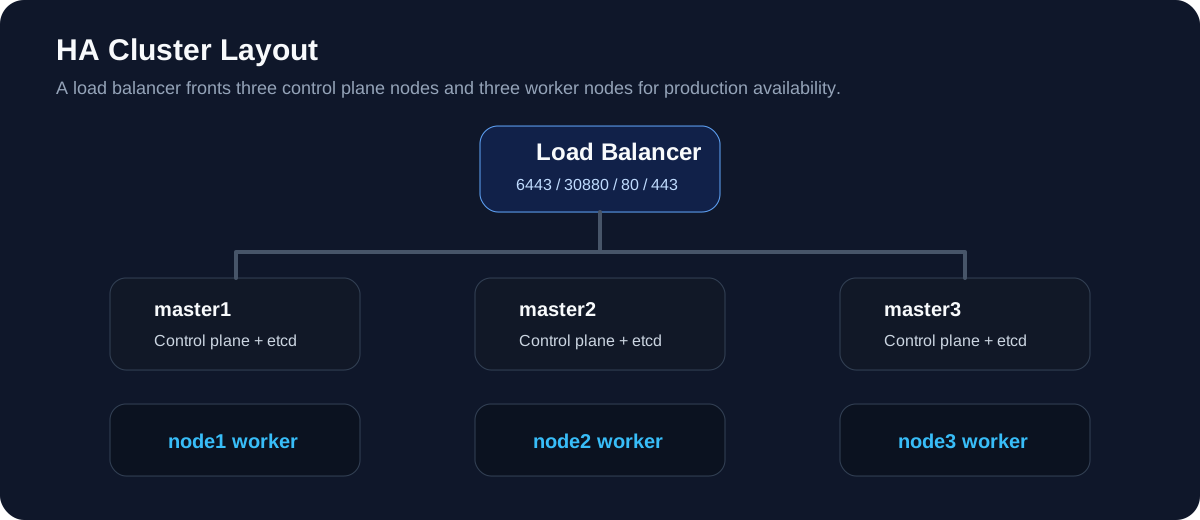
Make sure you have prepared six Linux machines before you begin, with three of them serving as control plane nodes and the other three as worker nodes. The following diagram shows the recommended layout. For more information about system and network requirements, see Multi-node Installation.
Configure a Load Balancer
You must create a load balancer in your environment to listen (also known as listeners on some cloud platforms) on key ports. Here is a table of recommended ports that need to be listened on.
| Service | Protocol | Port |
|---|---|---|
| apiserver | TCP | 6443 |
| ks-console | TCP | 30880 |
| http | TCP | 80 |
| https | TCP | 443 |
Note
-
Make sure your load balancer at least listens on the port of apiserver.
-
You may need to open ports in your security group to ensure external traffic is not blocked depending on where your cluster is deployed. For more information, see Port Requirements.
-
You can configure both internal and external load balancers on some cloud platforms. After assigning a public IP address to the external load balancer, you can use the IP address to access the cluster.
-
For more information about how to configure load balancers, see Installing on Public Cloud to see specific steps on major public cloud platforms.
Get KubeKey
KubeKey is included in the Kube AI Hub offline installation package. After extracting the package, select the binary for your architecture:
# x86_64 architecture
mv kk-x86 kk

# ARM64 architecture
mv kk-arm kk

chmod +x kk
Note
Create an example configuration file with default configurations. Here Kubernetes v1.34.4 is used as an example.
./kk create config --with-kubesphere v3.4.1 --with-kubernetes v1.34.4
Note
-
Recommended Kubernetes versions for Kube AI Hub 3.4: v1.28.x, v1.29.x, v1.30.x, v1.31.x, v1.32.x, v1.33.x, and v1.34.x (v1.34.x recommended). If you do not specify a Kubernetes version, KubeKey will install Kubernetes v1.34.4 by default. For more information about supported Kubernetes versions, see Support Matrix.
-
If you do not add the flag
--with-kubespherein the command in this step, Kube AI Hub will not be deployed unless you install it using theaddonsfield in the configuration file or add this flag again when you use./kk create clusterlater. -
If you add the flag
--with-kubespherewithout specifying a Kube AI Hub version, the latest version of Kube AI Hub will be installed.
Deploy Kube AI Hub and Kubernetes
After you run the commands above, a configuration file config-sample.yaml will be created. Edit the file to add machine information, configure the load balancer and more.
Note
config-sample.yaml example
spec:
  hosts:
  - {name: master1, address: 192.168.0.2, internalAddress: 192.168.0.2, user: ubuntu, password: Testing123}
  - {name: master2, address: 192.168.0.3, internalAddress: 192.168.0.3, user: ubuntu, password: Testing123}
  - {name: master3, address: 192.168.0.4, internalAddress: 192.168.0.4, user: ubuntu, password: Testing123}
  - {name: node1, address: 192.168.0.5, internalAddress: 192.168.0.5, user: ubuntu, password: Testing123}
  - {name: node2, address: 192.168.0.6, internalAddress: 192.168.0.6, user: ubuntu, password: Testing123}
  - {name: node3, address: 192.168.0.7, internalAddress: 192.168.0.7, user: ubuntu, password: Testing123}
  roleGroups:
    etcd:
    - master1
    - master2
    - master3
    control-plane:
    - master1
    - master2
    - master3
    worker:
    - node1
    - node2
    - node3
For more information about different fields in this configuration file, see Kubernetes Cluster Configurations and Multi-node Installation.
Configure the load balancer
spec:
  controlPlaneEndpoint:
    ##Internal loadbalancer for apiservers
    #internalLoadbalancer: haproxy

    domain: lb.kubesphere.local
    address: "192.168.0.xx"
    port: 6443
Note
- The address and port should be indented by two spaces in
config-sample.yaml. - In most cases, you need to provide the private IP address of the load balancer for the field
address. However, different cloud providers may have different configurations for load balancers. For example, if you configure a Server Load Balancer (SLB) on Alibaba Cloud, the platform assigns a public IP address to the SLB, which means you need to specify the public IP address for the fieldaddress. - The domain name of the load balancer is
lb.kubesphere.localby default for internal access. - To use an internal load balancer, uncomment the field
internalLoadbalancer.
Persistent storage plugin configurations
For a production environment, you need to prepare persistent storage and configure the storage plugin (for example, CSI) in config-sample.yaml to define which storage service you want to use. For more information, see Persistent Storage Configurations.
Enable pluggable components (Optional)
Kube AI Hub has decoupled some core feature components since v2.1.0. These components are designed to be pluggable which means you can enable them either before or after installation. By default, Kube AI Hub will be installed with the minimal package if you do not enable them.
You can enable any of them according to your demands. It is highly recommended that you install these pluggable components to discover the full-stack features and capabilities provided by Kube AI Hub. Make sure your machines have sufficient CPU and memory before enabling them. See Enable Pluggable Components for details.
Start installation
After you complete the configuration, you can execute the following command to start the installation:
./kk create cluster -f config-sample.yaml
Verify installation
-
Run the following command to inspect the logs of installation.
kubectl logs -n kubesphere-system $(kubectl get pod -n kubesphere-system -l 'app in (ks-install, ks-installer)' -o jsonpath='{.items[0].metadata.name}') -f -
When you see the following message, it means your HA cluster is successfully created.
#####################################################
###              Welcome to Kube AI Hub!           ###
#####################################################

Console: http://192.168.0.3:30880
Account: admin
Password: P@88w0rd

NOTES:
  1. After you log into the console, please check the
     monitoring status of service components in
     the "Cluster Management". If any service is not
     ready, please wait patiently until all components
     are up and running.
  2. Please change the default password after login.

#####################################################
https://www.watering.ai/          2020-xx-xx xx:xx:xx
#####################################################
 Previous
