


Set up an HA Kubernetes Cluster Using Keepalived and HAproxy
A highly available Kubernetes cluster ensures your applications run without outages which is required for production. In this connection, there are plenty of ways for you to choose from to achieve high availability.
This tutorial demonstrates how to configure Keepalived and HAproxy for load balancing and achieve high availability. The steps are listed as below:
- Prepare hosts.
- Configure Keepalived and HAproxy.
- Use KubeKey to set up a Kubernetes cluster and install Kube AI Hub.
Cluster Architecture
The example cluster has three master nodes, three worker nodes, two nodes for load balancing and one virtual IP address. The virtual IP address in this example may also be called "a floating IP address". That means in the event of node failures, the IP address can be passed between nodes allowing for failover, thus achieving high availability.
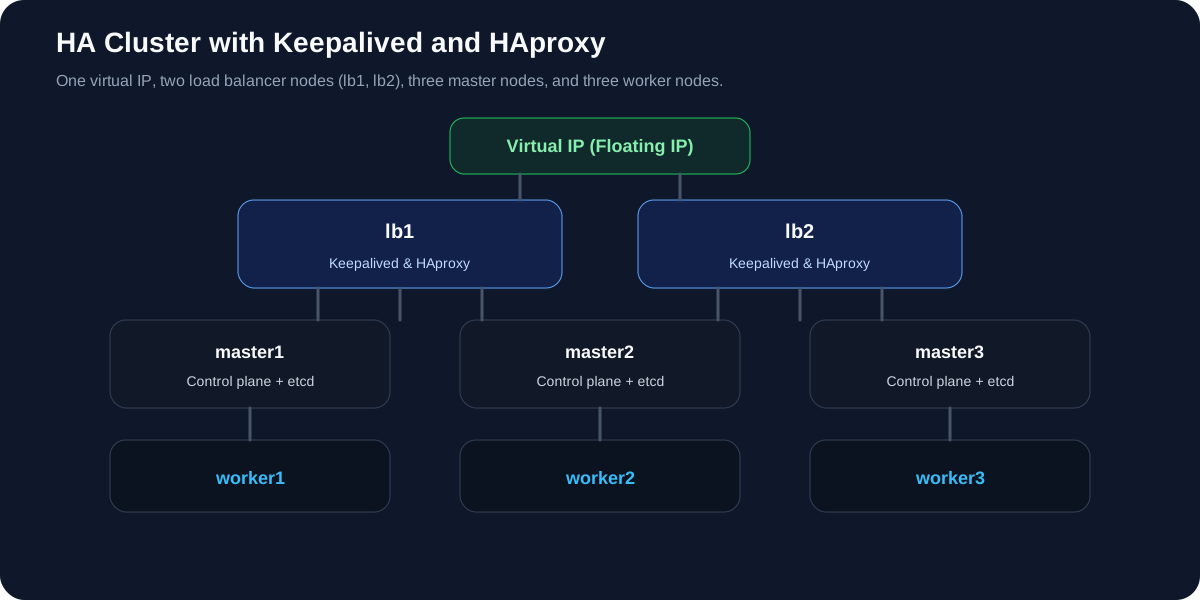
Notice that in this example, Keepalived and HAproxy are not installed on any of the master nodes. Admittedly, you can do that and high availability can also be achieved. That said, configuring two specific nodes for load balancing (You can add more nodes of this kind as needed) is more secure. Only Keepalived and HAproxy will be installed on these two nodes, avoiding any potential conflicts with any Kubernetes components and services.
Prepare Hosts
| IP Address | Hostname | Role |
|---|---|---|
| 172.16.0.2 | lb1 | Keepalived & HAproxy |
| 172.16.0.3 | lb2 | Keepalived & HAproxy |
| 172.16.0.4 | master1 | master, etcd |
| 172.16.0.5 | master2 | master, etcd |
| 172.16.0.6 | master3 | master, etcd |
| 172.16.0.7 | worker1 | worker |
| 172.16.0.8 | worker2 | worker |
| 172.16.0.9 | worker3 | worker |
| 172.16.0.10 | Virtual IP address |
For more information about requirements for nodes, network, and dependencies, see Multi-node Installation.
Configure Load Balancing
Keepalived provides a VRPP implementation and allows you to configure Linux machines for load balancing, preventing single points of failure. HAProxy, providing reliable, high performance load balancing, works perfectly with Keepalived.
As Keepalived and HAproxy are installed on lb1 and lb2, if either one goes down, the virtual IP address (i.e. the floating IP address) will be automatically associated with another node so that the cluster is still functioning well, thus achieving high availability. If you want, you can add more nodes all with Keepalived and HAproxy installed for that purpose.
Run the following command to install Keepalived and HAproxy first.
yum install keepalived haproxy psmisc -y
HAproxy Configuration
-
The configuration of HAproxy is exactly the same on the two machines for load balancing. Run the following command to configure HAproxy.
vi /etc/haproxy/haproxy.cfg -
Here is an example configuration for your reference (Pay attention to the
serverfield. Note that6443is theapiserverport):global log /dev/log local0 warning chroot /var/lib/haproxy pidfile /var/run/haproxy.pid maxconn 4000 user haproxy group haproxy daemon stats socket /var/lib/haproxy/stats defaults log global option httplog option dontlognull timeout connect 5000 timeout client 50000 timeout server 50000 frontend kube-apiserver bind *:6443 mode tcp option tcplog default_backend kube-apiserver backend kube-apiserver mode tcp option tcplog option tcp-check balance roundrobin default-server inter 10s downinter 5s rise 2 fall 2 slowstart 60s maxconn 250 maxqueue 256 weight 100 server kube-apiserver-1 172.16.0.4:6443 check # Replace the IP address with your own. server kube-apiserver-2 172.16.0.5:6443 check # Replace the IP address with your own. server kube-apiserver-3 172.16.0.6:6443 check # Replace the IP address with your own. -
Save the file and run the following command to restart HAproxy.
systemctl restart haproxy -
Make it persist through reboots:
systemctl enable haproxy -
Make sure you configure HAproxy on the other machine (
lb2) as well.
Keepalived Configuration
Keepalived must be installed on both machines while the configuration of them is slightly different.
-
Run the following command to configure Keepalived.
vi /etc/keepalived/keepalived.conf -
Here is an example configuration (
lb1) for your reference:global_defs { notification_email { } router_id LVS_DEVEL vrrp_skip_check_adv_addr vrrp_garp_interval 0 vrrp_gna_interval 0 } vrrp_script chk_haproxy { script "killall -0 haproxy" interval 2 weight 2 } vrrp_instance haproxy-vip { state BACKUP priority 100 interface eth0 # Network card virtual_router_id 60 advert_int 1 authentication { auth_type PASS auth_pass 1111 } unicast_src_ip 172.16.0.2 # The IP address of this machine unicast_peer { 172.16.0.3 # The IP address of peer machines } virtual_ipaddress { 172.16.0.10/24 # The VIP address } track_script { chk_haproxy } }Note
-
For the
interfacefield, you must provide your own network card information. You can runifconfigon your machine to get the value. -
The IP address provided for
unicast_src_ipis the IP address of your current machine. For other machines where HAproxy and Keepalived are also installed for load balancing, their IP address must be provided for the fieldunicast_peer.
-
-
Save the file and run the following command to restart Keepalived.
systemctl restart keepalived -
Make it persist through reboots:
systemctl enable keepalived -
Make sure you configure Keepalived on the other machine (
lb2) as well.
Verify High Availability
Before you start to create your Kubernetes cluster, make sure you have tested the high availability.
-
On the machine
lb1, run the following command:[root@lb1 ~]# ip a s 1: lo: <LOOPBACK,UP,LOWER_UP> mtu 65536 qdisc noqueue state UNKNOWN group default qlen 1000 link/loopback 00:00:00:00:00:00 brd 00:00:00:00:00:00 inet 127.0.0.1/8 scope host lo valid_lft forever preferred_lft forever inet6 ::1/128 scope host valid_lft forever preferred_lft forever 2: eth0: <BROADCAST,MULTICAST,UP,LOWER_UP> mtu 1500 qdisc mq state UP group default qlen 1000 link/ether 52:54:9e:27:38:c8 brd ff:ff:ff:ff:ff:ff inet 172.16.0.2/24 brd 172.16.0.255 scope global noprefixroute dynamic eth0 valid_lft 73334sec preferred_lft 73334sec inet 172.16.0.10/24 scope global secondary eth0 # The VIP address valid_lft forever preferred_lft forever inet6 fe80::510e:f96:98b2:af40/64 scope link noprefixroute valid_lft forever preferred_lft forever -
As you can see above, the virtual IP address is successfully added. Simulate a failure on this node:
systemctl stop haproxy -
Check the floating IP address again and you can see it disappear on
lb1.[root@lb1 ~]# ip a s 1: lo: <LOOPBACK,UP,LOWER_UP> mtu 65536 qdisc noqueue state UNKNOWN group default qlen 1000 link/loopback 00:00:00:00:00:00 brd 00:00:00:00:00:00 inet 127.0.0.1/8 scope host lo valid_lft forever preferred_lft forever inet6 ::1/128 scope host valid_lft forever preferred_lft forever 2: eth0: <BROADCAST,MULTICAST,UP,LOWER_UP> mtu 1500 qdisc mq state UP group default qlen 1000 link/ether 52:54:9e:27:38:c8 brd ff:ff:ff:ff:ff:ff inet 172.16.0.2/24 brd 172.16.0.255 scope global noprefixroute dynamic eth0 valid_lft 72802sec preferred_lft 72802sec inet6 fe80::510e:f96:98b2:af40/64 scope link noprefixroute valid_lft forever preferred_lft forever -
Theoretically, the virtual IP will be failed over to the other machine (
lb2) if the configuration is successful. Onlb2, run the following command and here is the expected output:[root@lb2 ~]# ip a s 1: lo: <LOOPBACK,UP,LOWER_UP> mtu 65536 qdisc noqueue state UNKNOWN group default qlen 1000 link/loopback 00:00:00:00:00:00 brd 00:00:00:00:00:00 inet 127.0.0.1/8 scope host lo valid_lft forever preferred_lft forever inet6 ::1/128 scope host valid_lft forever preferred_lft forever 2: eth0: <BROADCAST,MULTICAST,UP,LOWER_UP> mtu 1500 qdisc mq state UP group default qlen 1000 link/ether 52:54:9e:3f:51:ba brd ff:ff:ff:ff:ff:ff inet 172.16.0.3/24 brd 172.16.0.255 scope global noprefixroute dynamic eth0 valid_lft 72690sec preferred_lft 72690sec inet 172.16.0.10/24 scope global secondary eth0 # The VIP address valid_lft forever preferred_lft forever inet6 fe80::f67c:bd4f:d6d5:1d9b/64 scope link noprefixroute valid_lft forever preferred_lft forever -
As you can see above, high availability is successfully configured.
Use KubeKey to Create a Kubernetes Cluster
KubeKey is included in the Kube AI Hub offline installation package. After extracting the package, select the binary for your architecture:
# x86_64 architecture
mv kk-x86 kk

# ARM64 architecture
mv kk-arm kk

chmod +x kk
Note
Create an example configuration file with default configurations. Here Kubernetes v1.34.4 is used as an example.
./kk create config --with-kubesphere v3.4.1 --with-kubernetes v1.34.4
Note
-
Recommended Kubernetes versions for Kube AI Hub 3.4: v1.28.x, v1.29.x, v1.30.x, v1.31.x, v1.32.x, v1.33.x, and v1.34.x (v1.34.x recommended). If you do not specify a Kubernetes version, KubeKey will install Kubernetes v1.34.4 by default. For more information about supported Kubernetes versions, see Support Matrix.
-
If you do not add the flag
--with-kubespherein the command in this step, Kube AI Hub will not be deployed unless you install it using theaddonsfield in the configuration file or add this flag again when you use./kk create clusterlater. -
If you add the flag
--with-kubespherewithout specifying a Kube AI Hub version, the latest version of Kube AI Hub will be installed.
Deploy Kube AI Hub and Kubernetes
After you run the commands above, a configuration file config-sample.yaml will be created. Edit the file to add machine information, configure the load balancer and more.
Note
config-sample.yaml example
...
spec:
  hosts:
  - {name: master1, address: 172.16.0.4, internalAddress: 172.16.0.4, user: root, password: Testing123}
  - {name: master2, address: 172.16.0.5, internalAddress: 172.16.0.5, user: root, password: Testing123}
  - {name: master3, address: 172.16.0.6, internalAddress: 172.16.0.6, user: root, password: Testing123}
  - {name: worker1, address: 172.16.0.7, internalAddress: 172.16.0.7, user: root, password: Testing123}
  - {name: worker2, address: 172.16.0.8, internalAddress: 172.16.0.8, user: root, password: Testing123}
  - {name: worker3, address: 172.16.0.9, internalAddress: 172.16.0.9, user: root, password: Testing123}
  roleGroups:
    etcd:
    - master1
    - master2
    - master3
    control-plane:
    - master1
    - master2
    - master3
    worker:
    - worker1
    - worker2
    - worker3
  controlPlaneEndpoint:
    domain: lb.kubesphere.local
    address: 172.16.0.10   # The VIP address
    port: 6443
...
Note
- Replace the value of
controlPlaneEndpoint.addresswith your own VIP address. - For more information about different parameters in this configuration file, see Multi-node Installation.
Start installation
After you complete the configuration, you can execute the following command to start the installation:
./kk create cluster -f config-sample.yaml
Verify installation
-
Run the following command to inspect the logs of installation.
kubectl logs -n kubesphere-system $(kubectl get pod -n kubesphere-system -l 'app in (ks-install, ks-installer)' -o jsonpath='{.items[0].metadata.name}') -f -
When you see the following message, it means your HA cluster is successfully created.
#####################################################
###              Welcome to Kube AI Hub!           ###
#####################################################

Console: http://172.16.0.4:30880
Account: admin
Password: P@88w0rd

NOTES:
  1. After you log into the console, please check the
     monitoring status of service components in
     the "Cluster Management". If any service is not
     ready, please wait patiently until all components
     are up and running.
  2. Please change the default password after login.

#####################################################
https://www.watering.ai/          2020-xx-xx xx:xx:xx
#####################################################
 Previous
