


Use an OAuth 2.0 Identity Provider
This document describes how to use an external identity provider based on the OAuth 2.0 protocol.
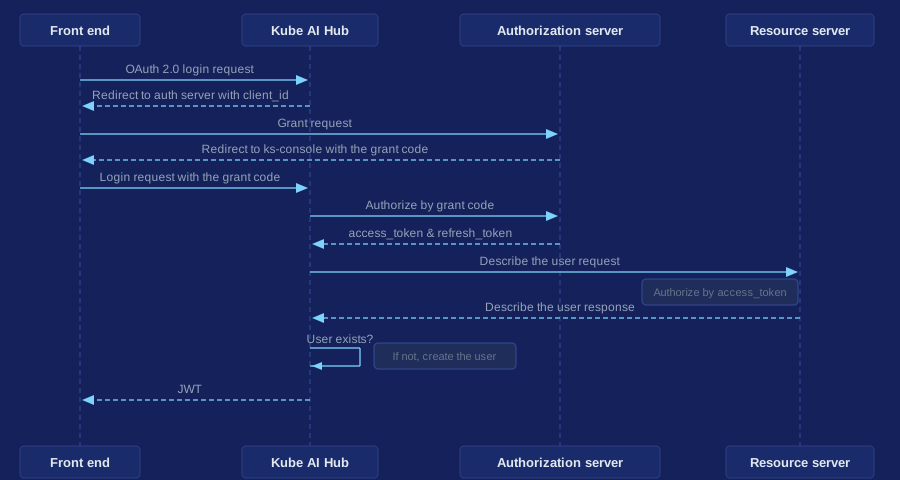
The following figure shows the authentication process between Kube AI Hub and an external OAuth 2.0 identity provider.
Prerequisites
You need to deploy a Kubernetes cluster and install Kube AI Hub in the cluster. For details, see Installing on Linux and Installing on Kubernetes.
Develop an OAuth 2.0 Plugin
Note
-
Clone the Kube AI Hub repository on your local machine, go to the local Kube AI Hub repository, and create a package for your plugin in the
/pkg/apiserver/authentication/identityprovider/directory. -
In the plugin package, implement the following interfaces:
// /pkg/apiserver/authentication/identityprovider/oauth_provider.go
type OAuthProvider interface {
	// Exchange identity with a remote server.
	IdentityExchange(code string) (Identity, error)
}

type OAuthProviderFactory interface {
	// Return the identity provider type.
	Type() string
	// Apply settings from kubesphere-config.
	Create(options oauth.DynamicOptions) (OAuthProvider, error)
}
// /pkg/apiserver/authentication/identityprovider/identity_provider.go type Identity interface { // (Mandatory) Return the identifier of the user at the identity provider. GetUserID() string // (Optional) Return the name of the user to be referred as on Kube AI Hub. GetUsername() string // (Optional) Return the email address of the user. GetEmail() string } -
Register the plugin in the
init()function of the plugin package.// Custom plugin package func init() { // Change <StructName> to the actual name of the struct that // implements the OAuthProviderFactory interface. identityprovider.RegisterOAuthProvider(&<StructName>{}) } -
Import the plugin package in
/pkg/apiserver/authentication/options/authenticate_options.go.// Change <CustomPackage> to the actual name of your plugin package. import ( ... _ "kubesphere.io/kubesphere/pkg/apiserver/authentication/identityprovider/<CustomPackage>" ... ) -
Build the image of ks-apiserver and deploy it in your cluster.
Integrate an Identity Provider with Kube AI Hub
-
Log in to Kube AI Hub as
admin, move the cursor to in the lower-right corner, click kubectl, and run the following command to edit
 ks-installerof the CRDClusterConfiguration:kubectl -n kubesphere-system edit cc ks-installer -
Confiother than
oauthOptions:identityProvidersin thespec:authenticationsection. For details, see Set Up External Authentication. -
Configure fields in
oauthOptions:identityProviderssection according to the identity provider plugin you have developed.The following is a configuration example that uses GitHub as an external identity provider. For details, see the official GitHub documentation and the source code of the GitHubIdentityProvider plugin.
spec:
  authentication:
    jwtSecret: ''
    authenticateRateLimiterMaxTries: 10
    authenticateRateLimiterDuration: 10m0s
    oauthOptions:
      accessTokenMaxAge: 1h
      accessTokenInactivityTimeout: 30m
      identityProviders:
      - name: github
        type: GitHubIdentityProvider
        mappingMethod: auto
        provider:
          clientID: '******'
          clgure fields ientSecret: '******'
          redirectURL: 'https://ks-console/oauth/redirect/github'
Similarly, you can also use Alibaba Cloud IDaaS as an external identity provider. For details, see the official Alibaba IDaaS documentation and the source code of the AliyunIDaasProvider plugin.
-
After the fields are configured, save your changes, and wait until the restart of ks-installer is complete.
Note
The Kube AI Hub web console is unavailable during the restart of ks-installer. Please wait until the restart is complete. -
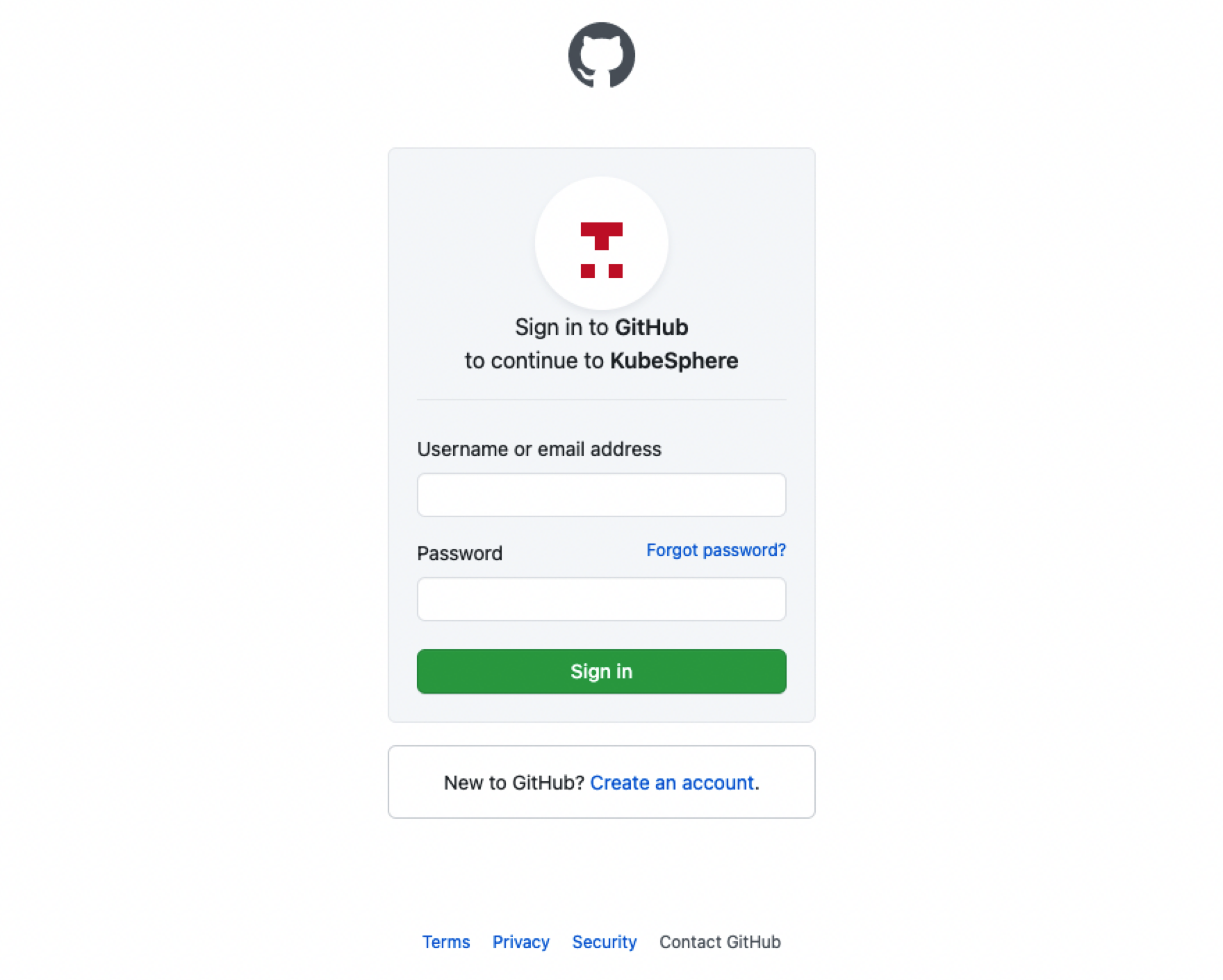
Go to the Kube AI Hub login page, click Log In with XXX (for example, Log In with GitHub).
-
On the login page of the external identity provider, enter the username and password of a user configured at the identity provider to log in to Kube AI Hub.
 Previous
