


Deploy Chaos Mesh on Kube AI Hub
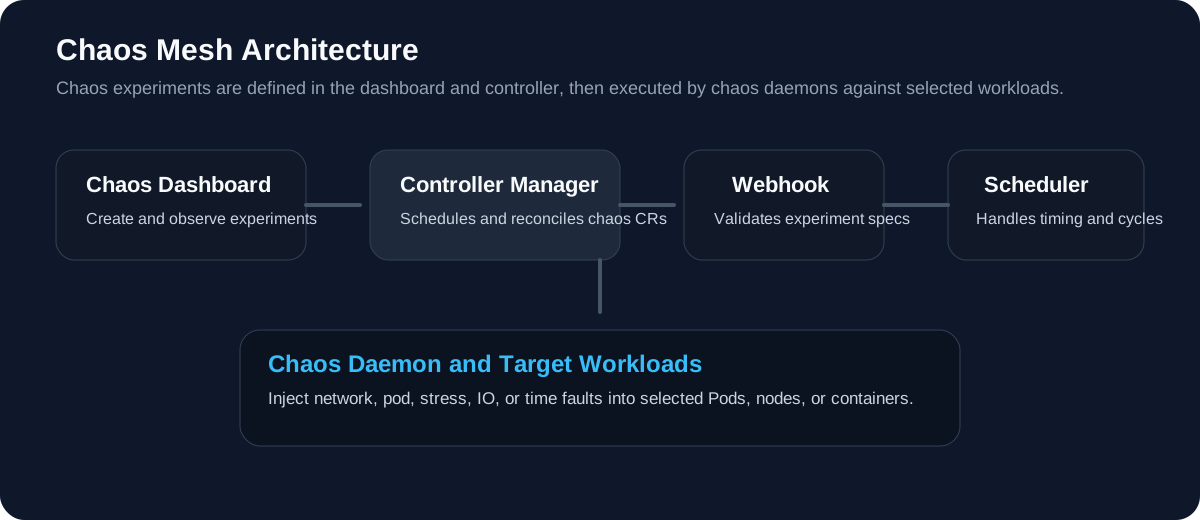
Chaos Mesh is a cloud-native Chaos Engineering platform that orchestrates chaos in Kubernetes environments. With Chaos Mesh, you can test your system's resilience and robustness on Kubernetes by injecting various types of faults into Pods, network, file system, and even the kernel.
Enable App Store on Kube AI Hub
-
Make sure you have installed and enabled the Kube AI Hub App Store.
-
You need to create a workspace, a project, and a user account (project-regular) for this tutorial. The account needs to be a platform regular user and to be invited as the project operator with the operator role. For more information, see Create Workspaces, Projects, Users and Roles.
Chaos experiments with Chaos Mesh
Step 1: Deploy Chaos Mesh
-
Log in to Kube AI Hub as
project-regular, search for chaos-mesh in the App Store, and open the app details page. -
Click Install in the upper-right corner.
-
In App Settings, set the application Name, Location (your Namespace), and App Version, and then continue.
-
Configure
values.yamlas needed, or keep the default configuration and install the app directly. -
Wait until the application status changes to Running.
Step 2: Visit Chaos Dashboard
-
In the application resources or Service list, locate the
chaos-dashboardService and copy its NodePort. -
Access the Chaos Dashboard by entering
${NodeIP}:${NODEPORT}in your browser. Refer to Manage User Permissions to generate a Token and log into Chaos Dashboard.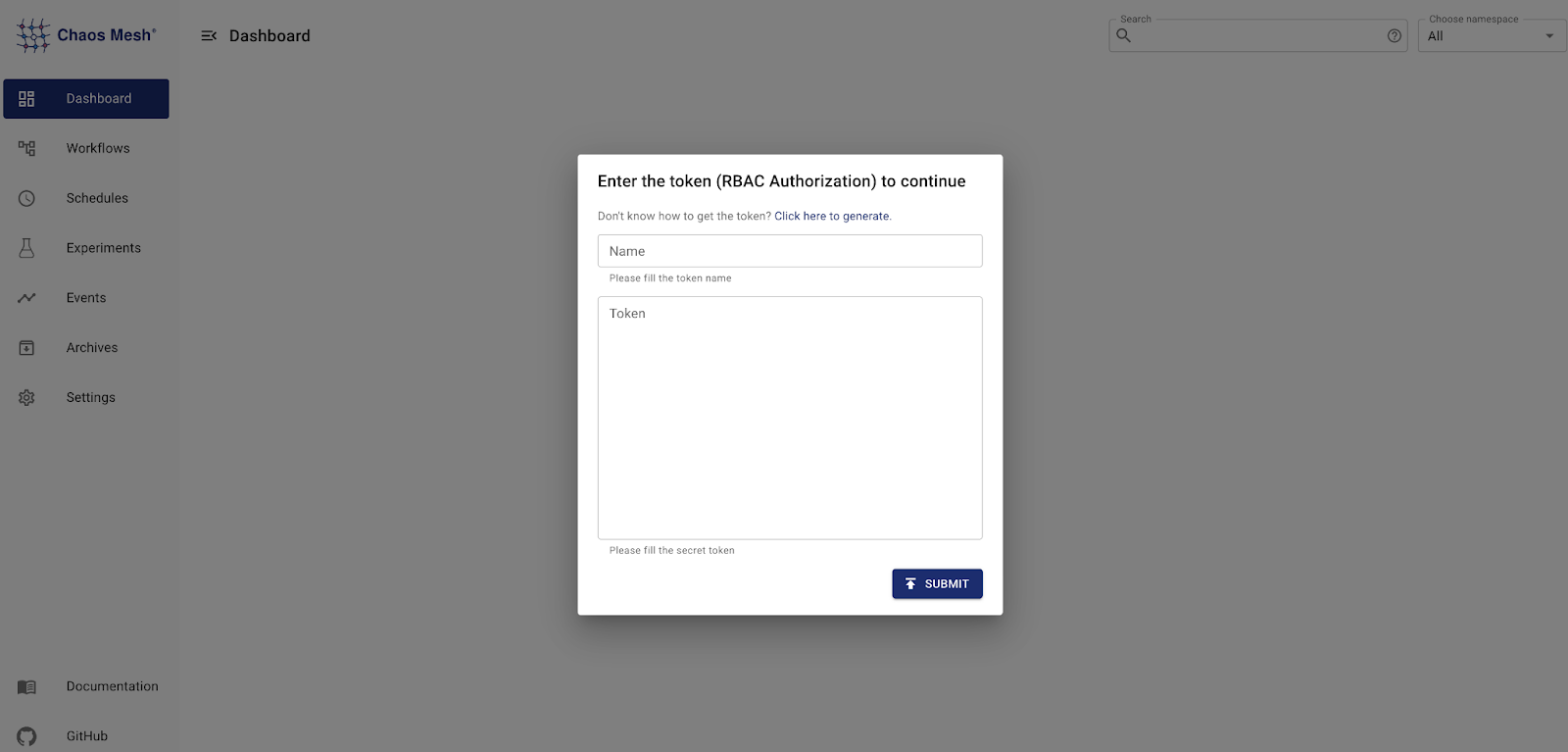
Step 3: Create a chaos experiment
Before creating a chaos experiment, you should identify and deploy your experiment target, for example, to test how an application works under network latency. Here, we use a demo application web-show as the target application to be tested, and the test goal is to observe the system network latency. You can deploy a demo application web-show with the following command: web-show.
curl -sSL https://mirrors.chaos-mesh.org/latest/web-show/deploy.sh | bash
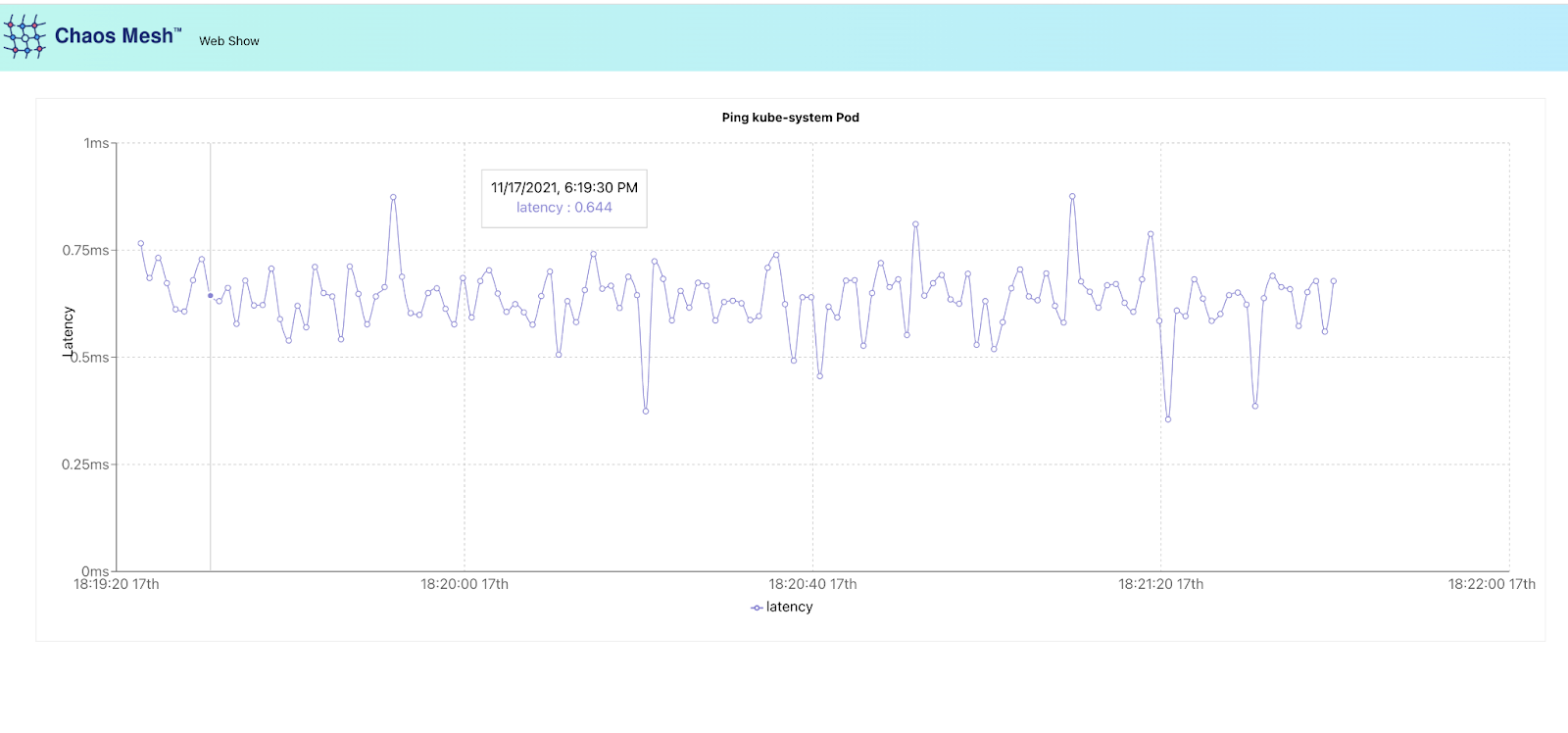
Note: The network latency of the Pod can be observed directly from the web-show application pad to the kube-system pod.
-
From your web browser, visit ${NodeIP}:8081 to access the Web Show application.
-
Log in to Chaos Dashboard to create a chaos experiment. To observe the effect of network latency on the application, we set the **Target **as "Network Attack" to simulate a network delay scenario.
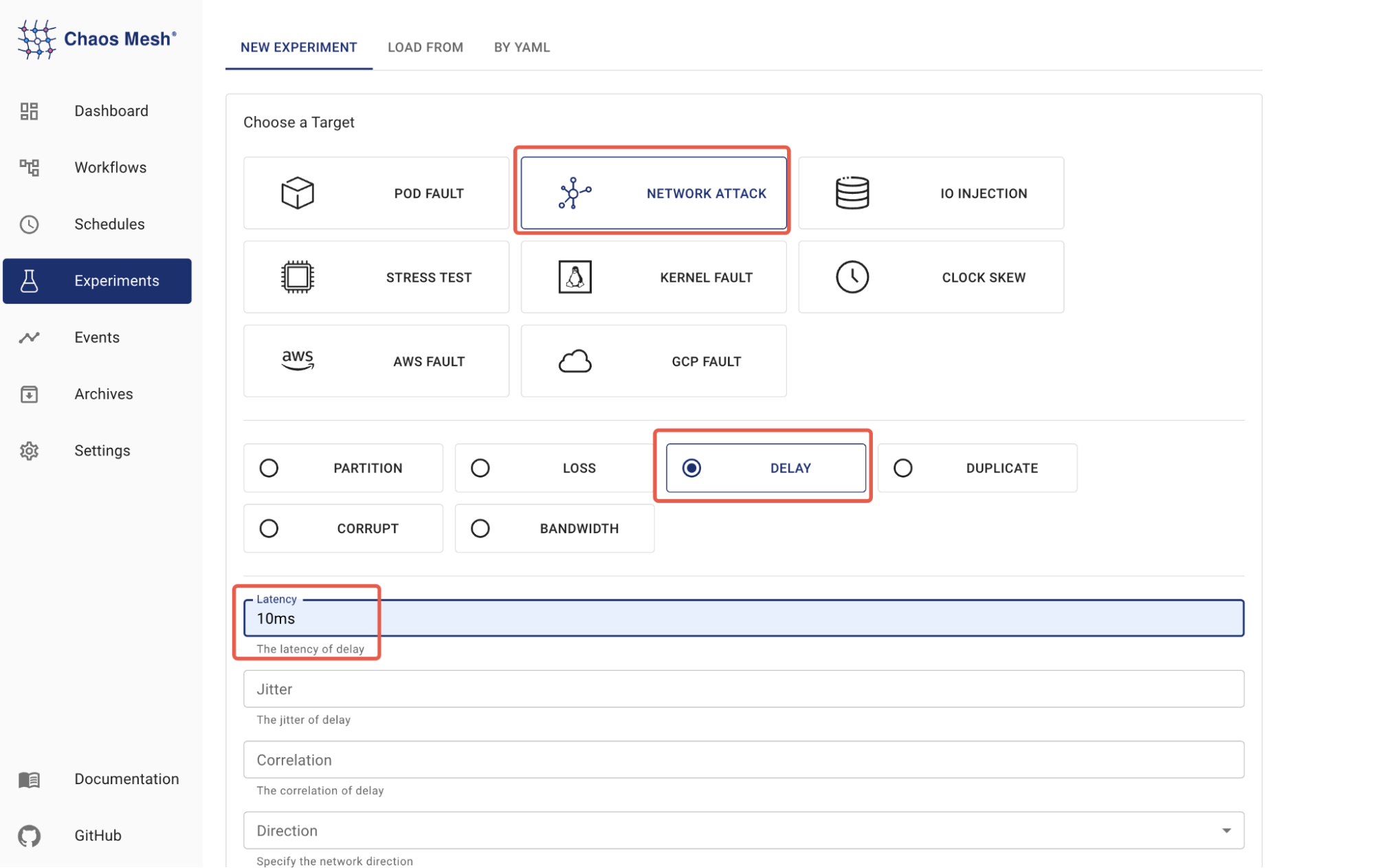
The Scope of the experiment is set to
app: web-show.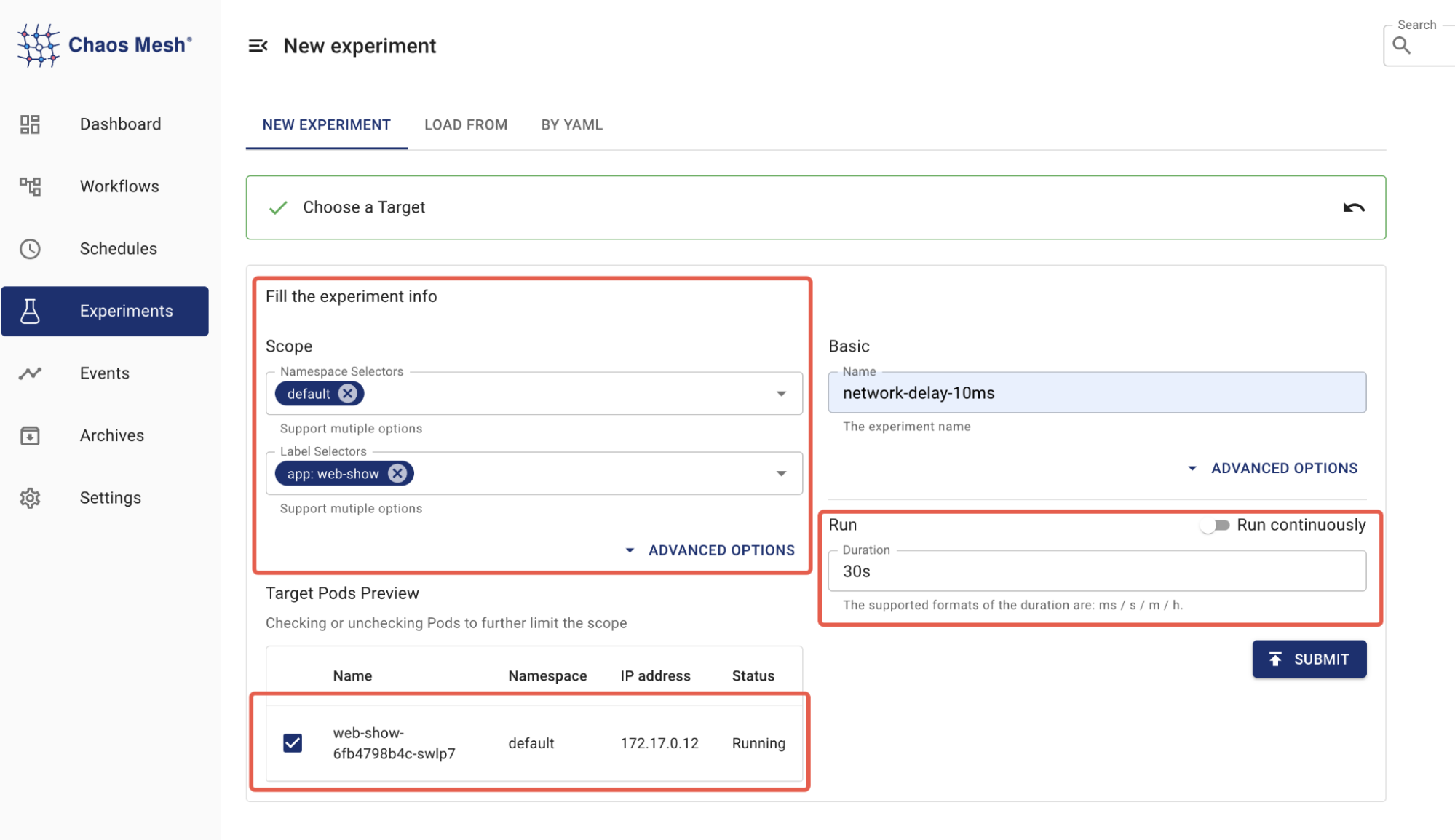
-
Start the chaos experiment by submitting it.
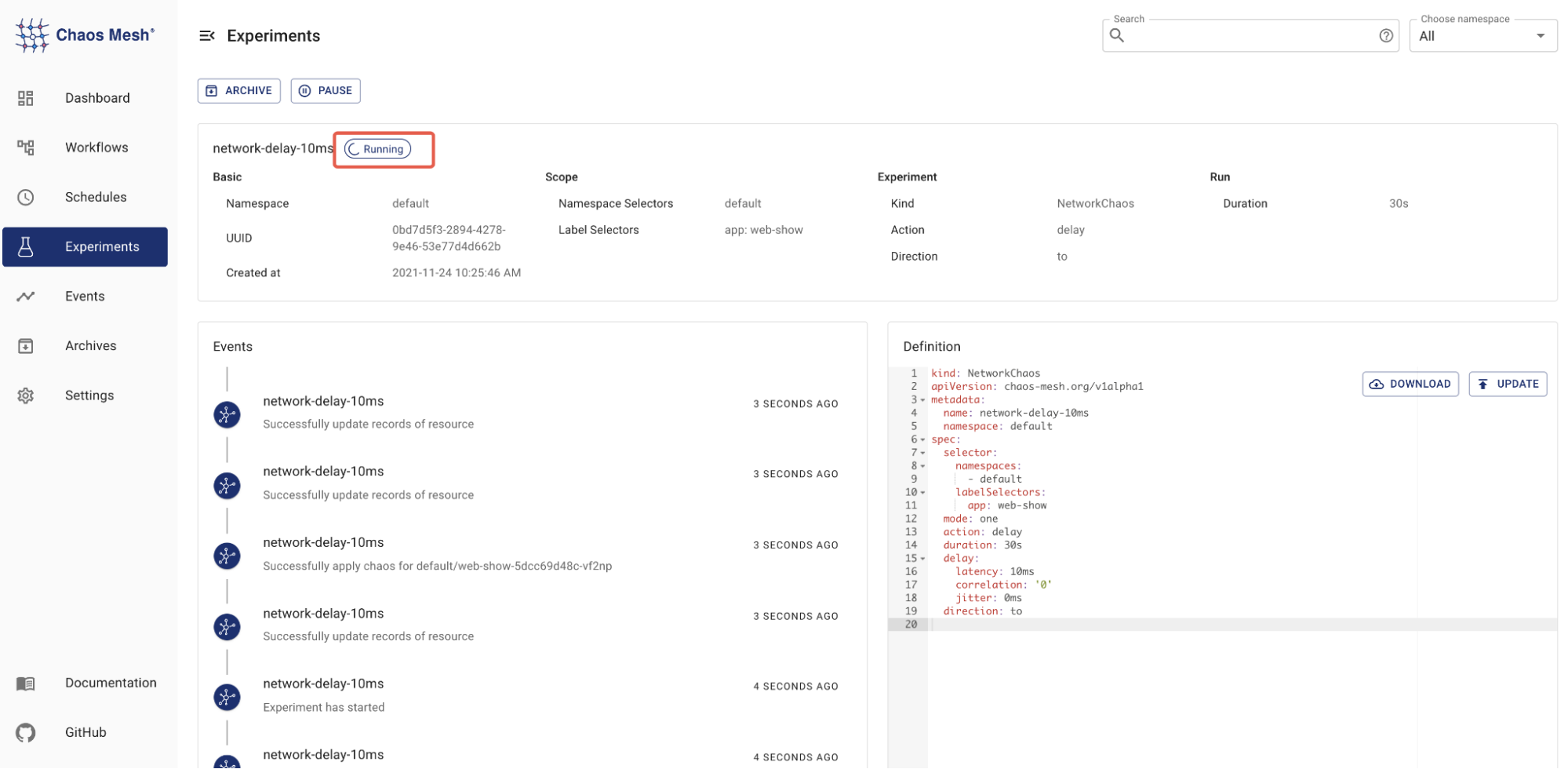
Now, you should be able to visit Web Show to observe experiment results:
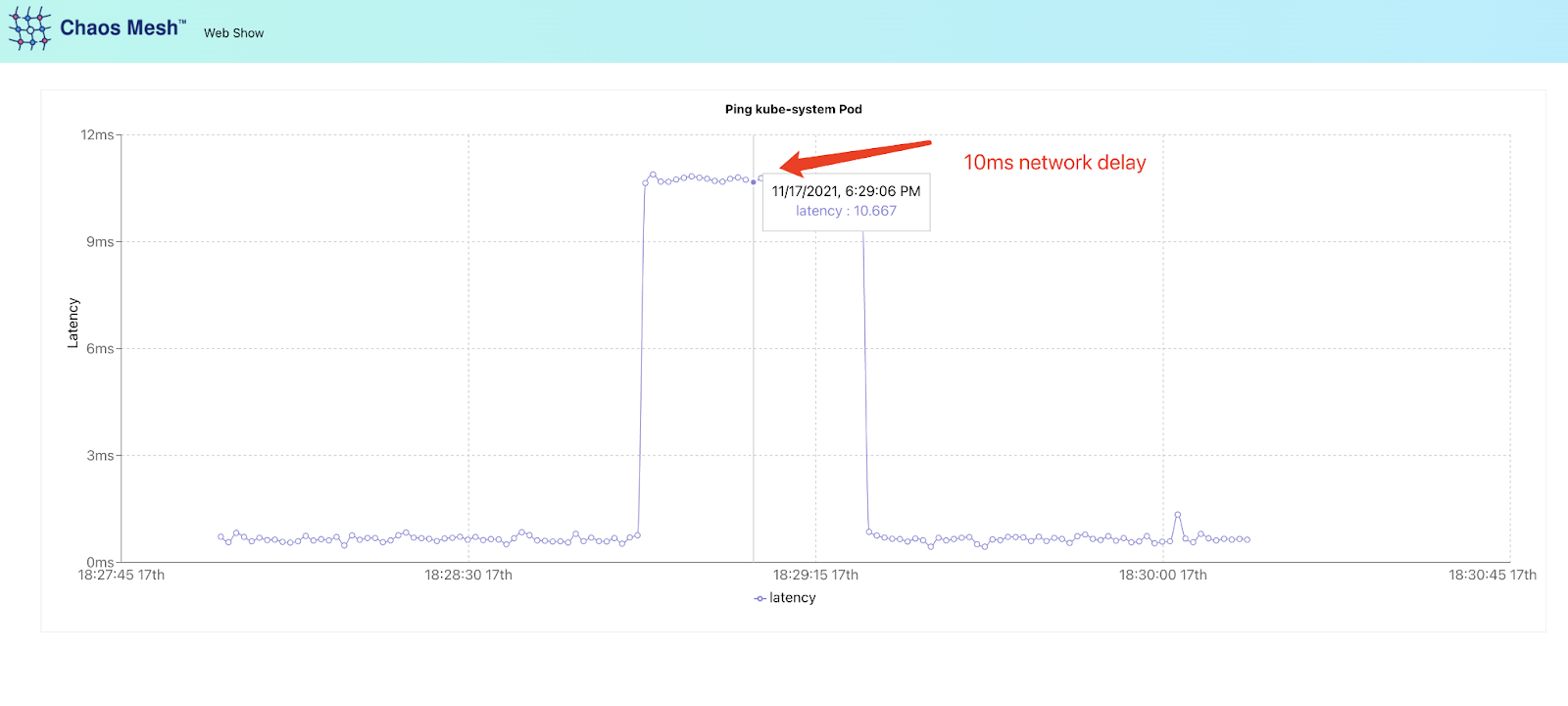
 Previous
