


Deploy Kube AI Hub on DigitalOcean Kubernetes
This guide walks you through the steps of deploying Kube AI Hub on DigitalOcean Kubernetes.
Prepare a DOKS Cluster
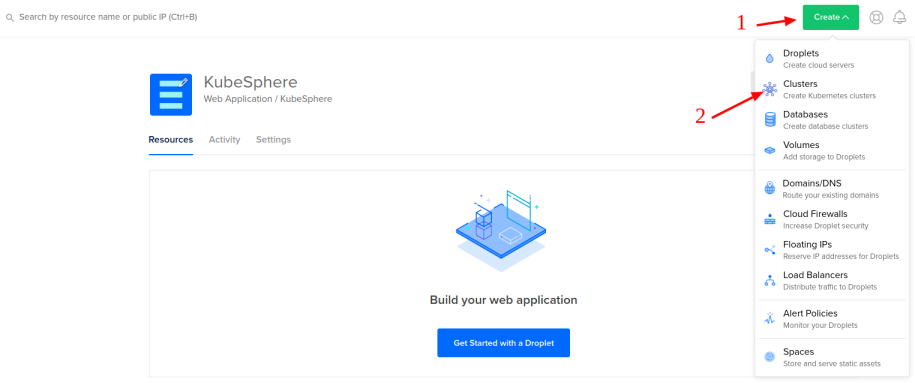
A Kubernetes cluster in DO is a prerequisite for installing Kube AI Hub. Go to your DO account and refer to the image below to create a cluster from the navigation menu.
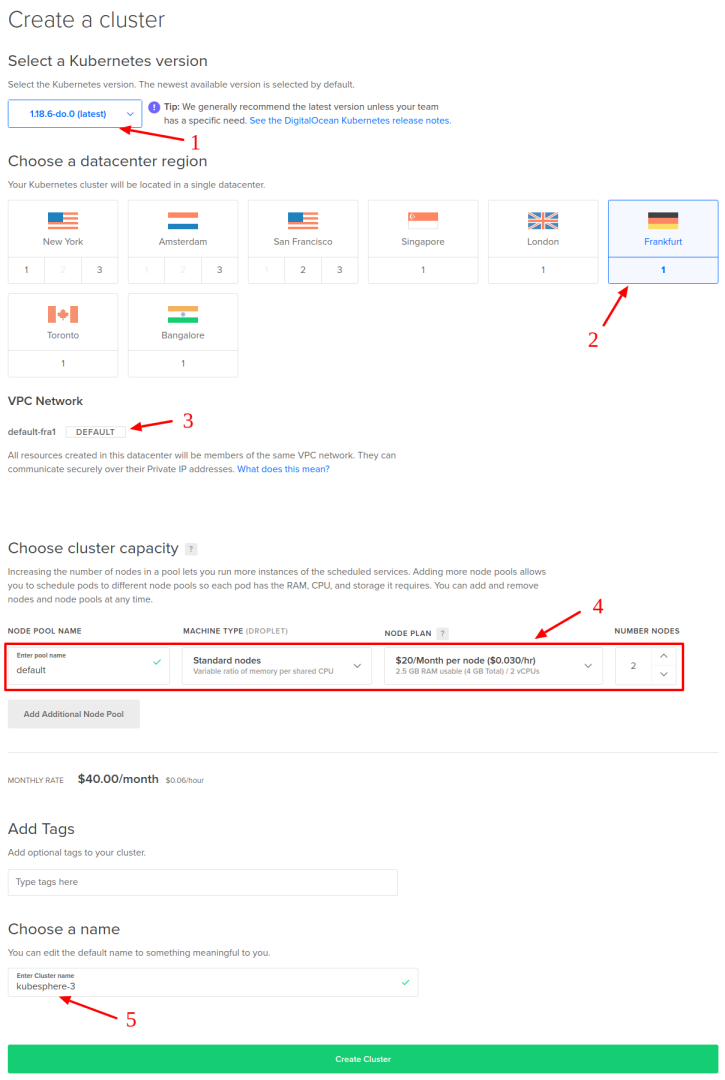
You need to select:
- Kubernetes version (for example, 1.18.6-do.0)
- Datacenter region (for example, Frankfurt)
- VPC network (for example, default-fra1)
- Cluster capacity (for example, 2 standard nodes with 2 vCPUs and 4GB of RAM each)
- A name for the cluster (for example, kubesphere-3)
Note
- To install Kube AI Hub 3.4 on Kubernetes, your Kubernetes version must be v1.28.x, v1.29.x, v1.30.x, v1.31.x, v1.32.x, v1.33.x, or v1.34.x (v1.34.x recommended).
- 2 nodes are included in this example. You can add more nodes based on your own needs, especially in a production environment.
- The machine type Standard/4 GB/2 vCPUs is for minimal installation. If you plan to enable several pluggable components or use the cluster for production, you can upgrade your nodes to a more powerful type (such as CPU-Optimized / 8 GB / 4 vCPUs). It seems that DigitalOcean provisions the control plane nodes based on the type of the worker nodes, and for Standard ones the API server can become unresponsive quite soon.
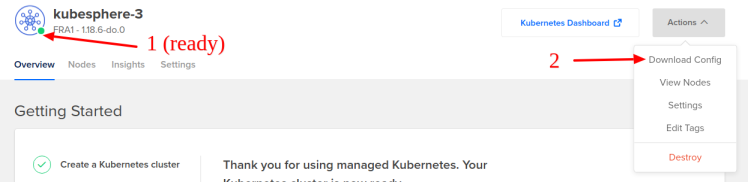
When the cluster is ready, you can download the config file for kubectl.
Install Kube AI Hub on DOKS
Now that the cluster is ready, you can install Kube AI Hub following the steps below:
-
Install Kube AI Hub using kubectl. The following commands are only for the default minimal installation.
```bash # Obtain the YAML files from the delivery channel kubectl apply -f kubesphere-installer.yaml kubectl apply -f cluster-configuration.yaml -
Inspect the logs of installation:
kubectl logs -n kubesphere-system $(kubectl get pod -n kubesphere-system -l 'app in (ks-install, ks-installer)' -o jsonpath='{.items[0].metadata.name}') -f
When the installation finishes, you can see the following message:
#####################################################
###              Welcome to Kube AI Hub!          ###
#####################################################
Console: http://10.XXX.XXX.XXX:30880
Account: admin
Password: P@88w0rd
NOTES:
  1. After logging into the console, please check the
     monitoring status of service components in
     the "Cluster Management". If any service is not
     ready, please wait patiently until all components
     are ready.
  2. Please modify the default password after login.
#####################################################
https://www.watering.ai/          2020-xx-xx xx:xx:xx
Access Kube AI Hub Console
Now that Kube AI Hub is installed, you can access the web console of Kube AI Hub by following the steps below.
-
Go to the Kubernetes Dashboard provided by DigitalOcean.

-
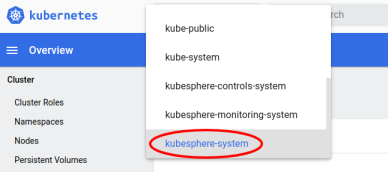
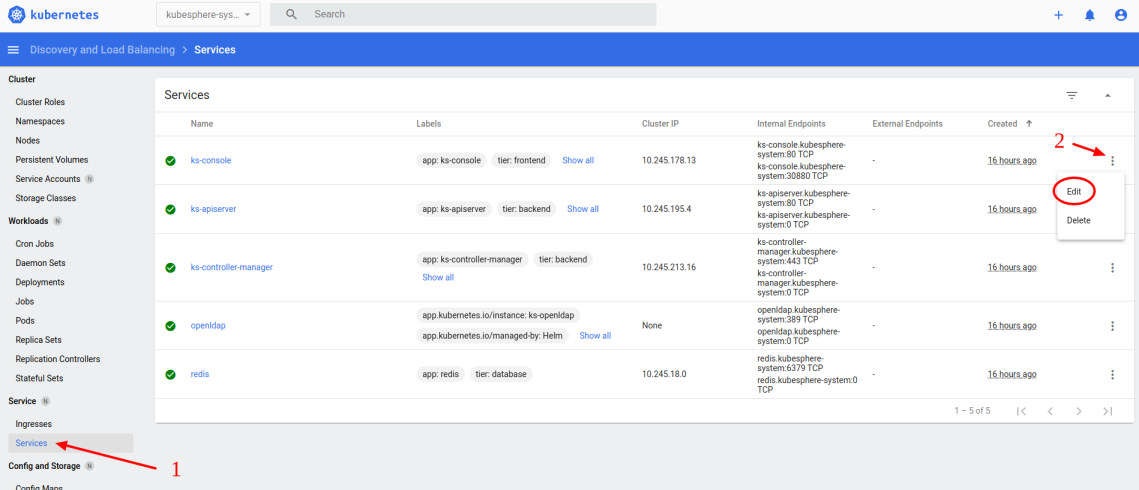
Select the kubesphere-system namespace.
-
In Services under Service, edit the service ks-console.
-
Change the type from
NodePorttoLoadBalancer. Save the file when you finish.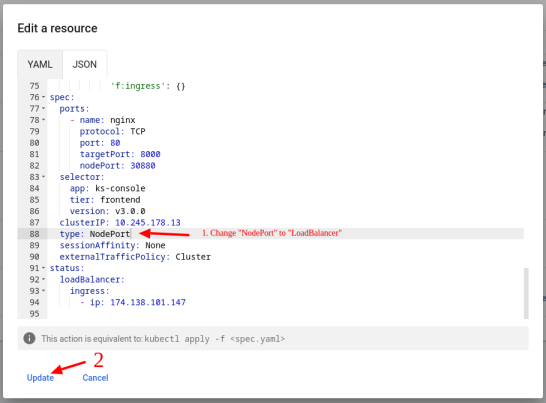
-
Wait for DO to assign an external endpoint to
ks-console, and then access the Kube AI Hub web console with that address.Tip
Instead of changing the service type toLoadBalancer, you can also access Kube AI Hub console viaNodeIP:NodePort(service type set toNodePort). You need to get the public IP of one of your nodes. -
Log in to the console with the default account and password (
admin/P@88w0rd). After login, review the cluster overview and system component status first.
Enable Pluggable Components (Optional)
The example above demonstrates the process of a default minimal installation. To enable other components in Kube AI Hub, see Enable Pluggable Components for more details.
 Previous
